How to colour grade iPhone video.
iPhone footage is recorded in HDR and looks flat or harsh until it is graded. Here is a workflow that gives a cinematic result in a few minutes, without a computer.
Why iPhone video looks flat, and why photo presets look wrong
Since the iPhone 12, the Camera app records HDR video (HLG, often labelled Dolby Vision). It keeps far more highlight detail than a normal video, so straight out of the camera it can look grey in the shadows and bright in the sky. Most presets and LUTs you find online were made for ordinary SDR video (Rec.709). Put one on HDR footage and contrast and colours go wrong: skies clip, skin turns orange, shadows turn milky.
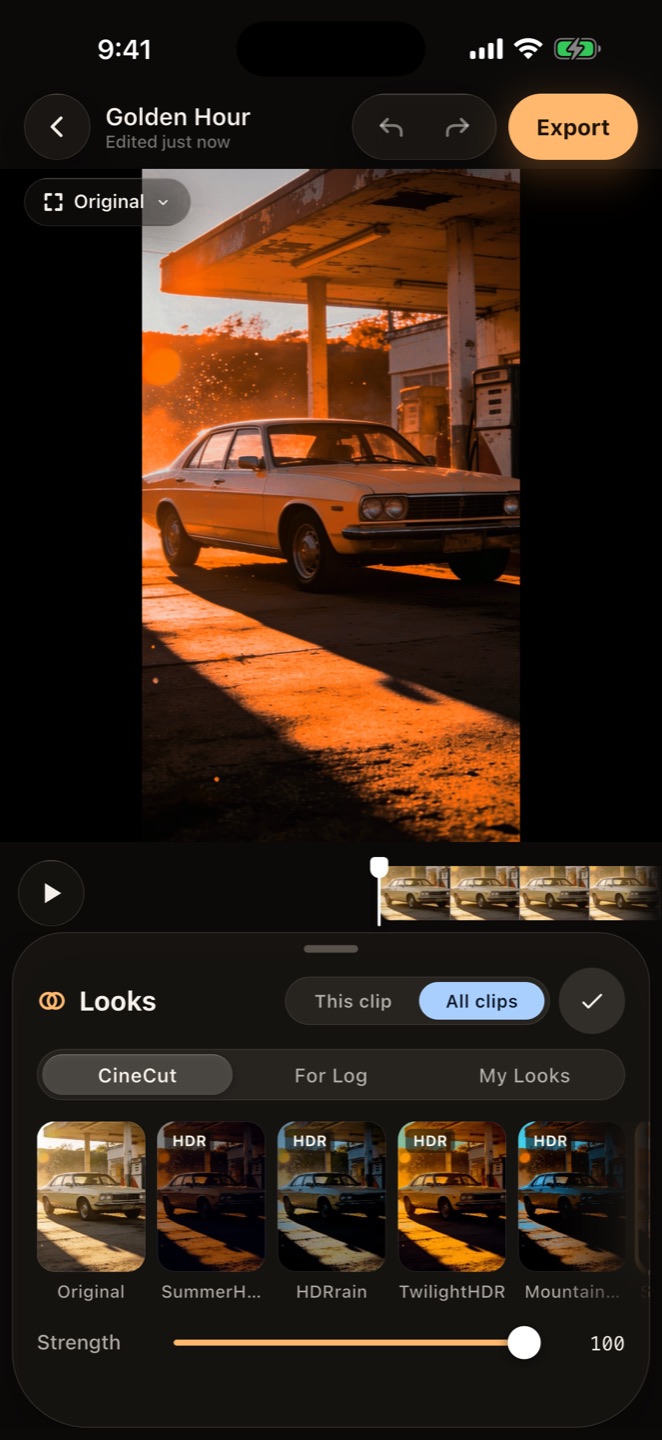
The fix is to grade with looks made for the footage you shot. CineCut's looks are colour grades by photographer Umair Wadood, calibrated separately for iPhone HDR, SDR and Apple Log, so the look you pick behaves the same on each.
Step by step
- Open CineCut, tap New project and pick your clips from Photos.
- Tap Color, then Looks, and choose a look made for HDR, such as SummerHDR or StormHDR. Use Strength to dial it in.
- Open Adjust to correct exposure, white balance (temperature and tint) and contrast for each clip.
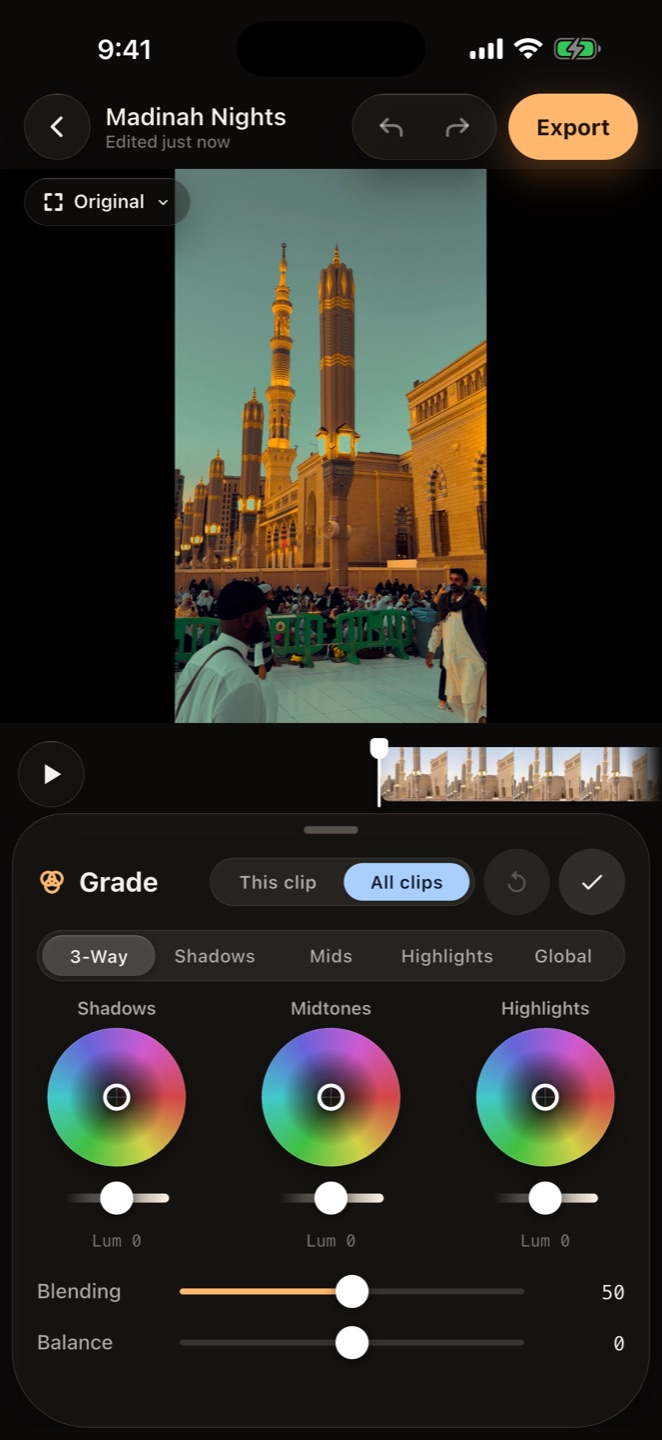
- Use Grade wheels or HDR zones to shape shadows, mid-tones and highlights separately.
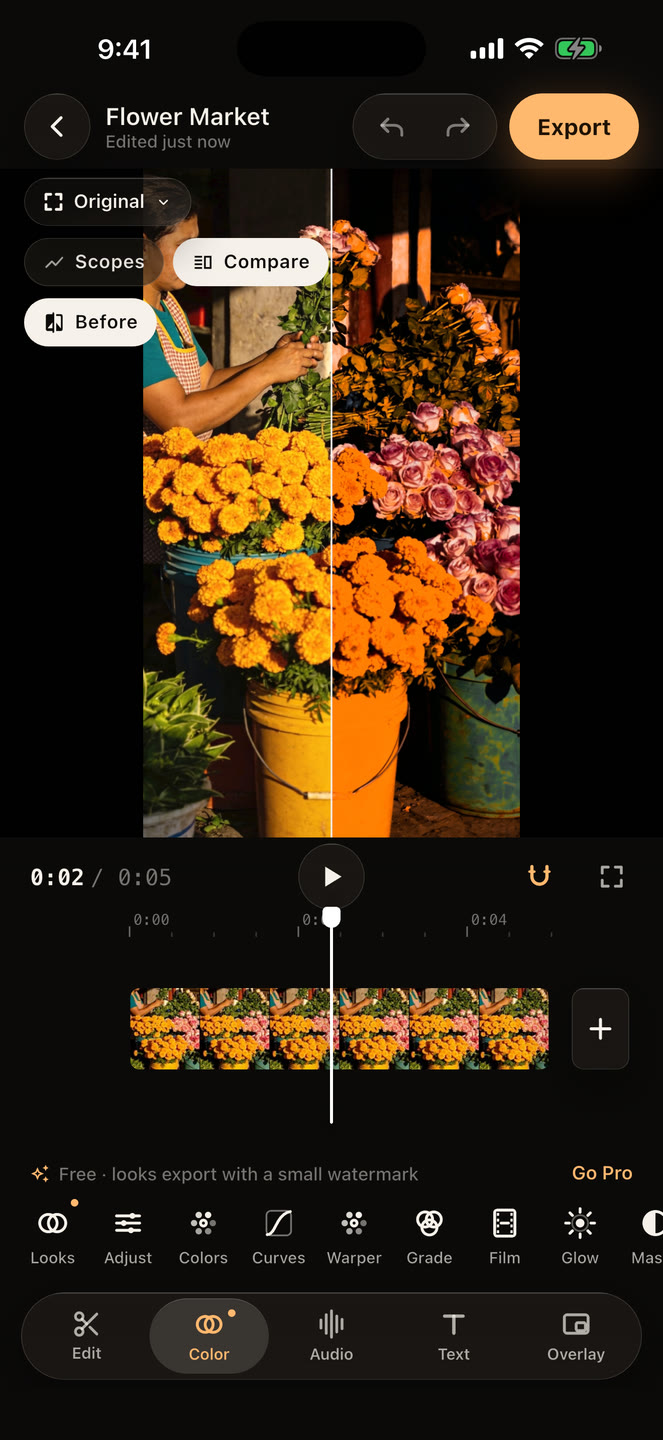
- Check skin on the vectorscope (the skin-tone line) and compare with the ungraded clip using Compare.
- Use Shot Match so every clip matches your favourite one, then tap Export. HDR clips stay HDR.
Tips for a cinematic grade
- Expose for the highlights. On the iPhone, tap and hold to lock exposure, then lower it a little so the sky keeps its detail. Shadows can be lifted later; blown highlights cannot be recovered.
- Fix white balance before the look. A look multiplies whatever colour cast is already there.
- Grade one hero clip, then match. Shot Match brings the others to its exposure, contrast and white balance.
- Keep skin natural. Skin tones sit on one line of the vectorscope whatever the person's complexion; pull them back to it if a look pushes them away.
- Go easy on Strength. 70–85% often looks more expensive than 100%.
Exporting for Instagram and TikTok
Export at the size of your project (vertical 9:16 for Reels and TikTok) and keep HDR on if your audience is mostly on recent iPhones. CineCut's share sheet hands the finished video to Instagram, where you can add licensed music.
CineCut is free on the App Store for iPhone and iPad. Every editing tool is free; Pro removes the watermark and unlocks the AI tools.
Download CineCut